HomePod - Luzes de controle de volume piscando

ha 3dias, meu HomePod parou de funcionar… luzes controle volume piscam a cada 5segundos.

Tentei contato com assistências autorizadas em diversas cidades: nada feito. Alguém já encontrou alguma eletrônica que aceitasse tentar abrir?


[Título alterado pelo Moderador] 

HomePod, 17

Publicado em 28/11/2023 13:04

Responder
Pergunta marcada como Resposta melhor classificada

Publicado em 28/11/2023 14:16

Olá Usuario(a), Aqui é a comunidade Apple de usuários ajudando outros usuários iguais a você. Homepod pode ter suporte nas lojas oficias no brasil (SP e RJ) pois o mesmo nao e comercializado aqui

Before you begin

  • If your HomePod speaker isn’t responding, first try to restart it with the Home app. If you don't see an option to restart, or HomePod still doesn't respond after restarting, reset it to factory settings.
  • If you have two HomePod speakers set up as a stereo pair, you must ungroup the stereo pair before you can reset HomePod.

Reset HomePod or HomePod mini to factory settings

  1. Open the Home app on your iPhone, iPad, or Mac that's signed in with the Apple ID that you used to set up HomePod.
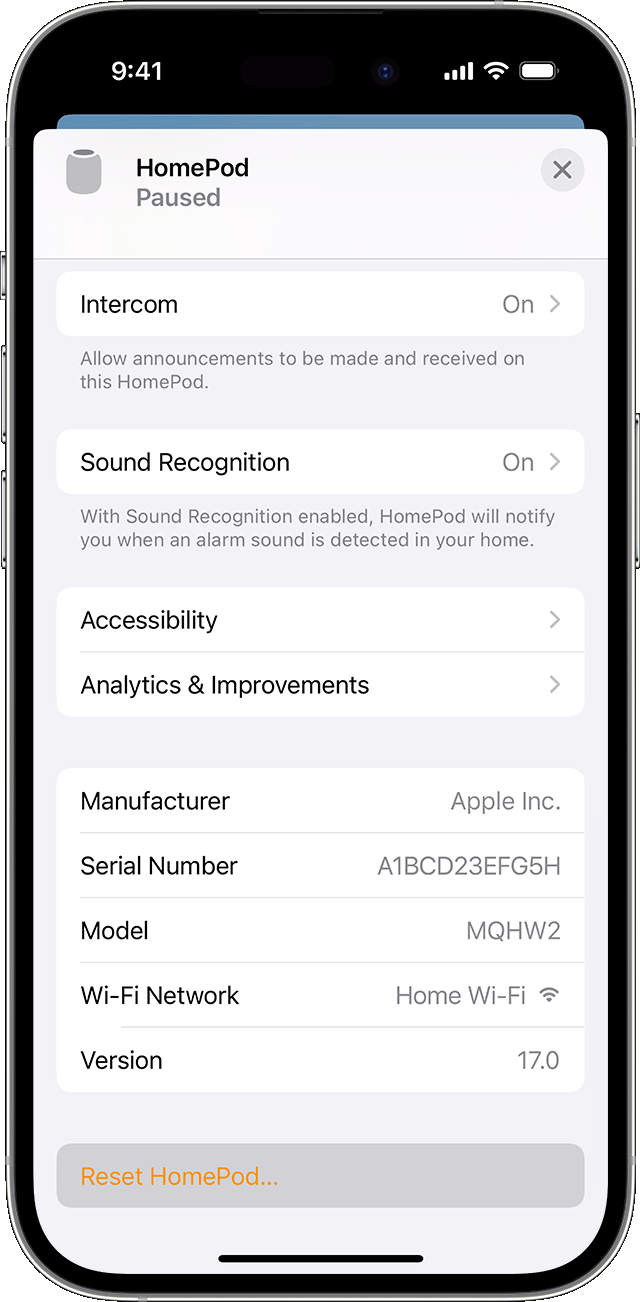
  2. Tap or click HomePod, tap or click the Settings button , then tap or click Reset HomePod.
  3. Select Remove Accessory. If a white spinning light appears on the top of HomePod, wait until the light disappears indicating that the reset is complete.

If a white spinning light does not appear on the top of HomePod:

  1. Unplug HomePod or unplug the power adapter for HomePod mini, wait 10 seconds, then plug HomePod back in.
  2. Wait 10 seconds, then touch and hold your finger to the top of HomePod.
  3. The white spinning light will turn red. Keep your finger down. 
  4. Siri will say that your HomePod is about to reset. When you hear three beeps, you can lift your finger.

After you reset HomePod, you can set up HomePod again.

Restore HomePod mini with a Mac or PC

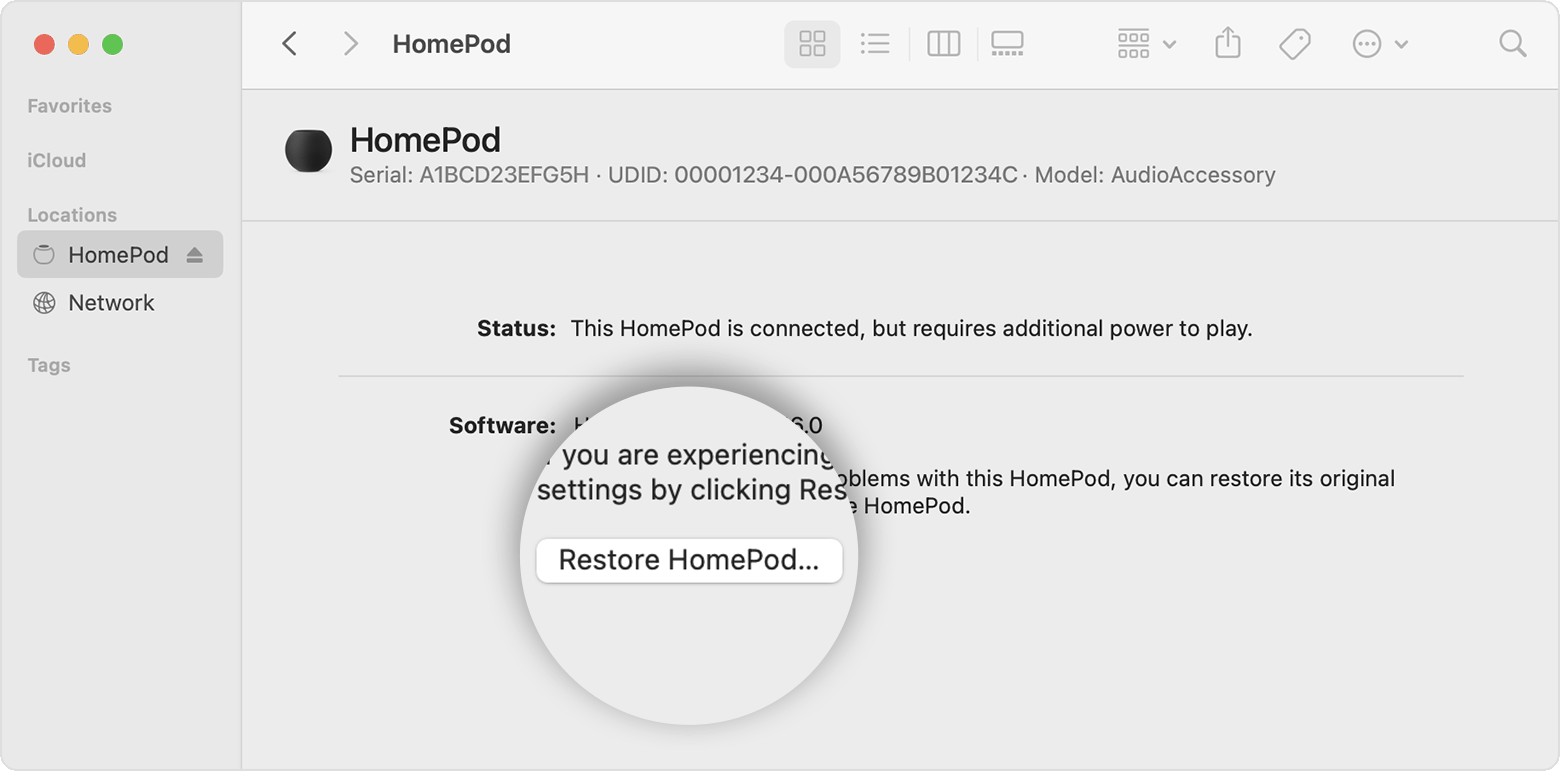
If you can't reset HomePod mini, you can restore it. Restoring your HomePod mini resets it and updates it to the latest software.

  1. Plug HomePod mini into your computer using the USB-C cable that came with it.
  2. Wait a few seconds. If you're using a Mac, open a Finder window. If you're using a PC, open the latest version of iTunes.
  3. Select your HomePod when it appears on your computer. 
  4. Click Restore HomePod.

You'll see a notification on your Mac or PC when HomePod mini is done restoring. After you restore HomePod mini, you can set up HomePod mini again.


Senao resolver, tera que agendar em das lojas oficias e ver se eles resolvem Espero ter ajudado! Atenciosamente Dav3 G®️0hl666

3 respostas
Pergunta marcada como Resposta melhor classificada

28/11/2023 14:16 em resposta a Thizagaliotto

Olá Usuario(a), Aqui é a comunidade Apple de usuários ajudando outros usuários iguais a você. Homepod pode ter suporte nas lojas oficias no brasil (SP e RJ) pois o mesmo nao e comercializado aqui

Before you begin

  • If your HomePod speaker isn’t responding, first try to restart it with the Home app. If you don't see an option to restart, or HomePod still doesn't respond after restarting, reset it to factory settings.
  • If you have two HomePod speakers set up as a stereo pair, you must ungroup the stereo pair before you can reset HomePod.

Reset HomePod or HomePod mini to factory settings

  1. Open the Home app on your iPhone, iPad, or Mac that's signed in with the Apple ID that you used to set up HomePod.
  2. Tap or click HomePod, tap or click the Settings button , then tap or click Reset HomePod.
  3. Select Remove Accessory. If a white spinning light appears on the top of HomePod, wait until the light disappears indicating that the reset is complete.

If a white spinning light does not appear on the top of HomePod:

  1. Unplug HomePod or unplug the power adapter for HomePod mini, wait 10 seconds, then plug HomePod back in.
  2. Wait 10 seconds, then touch and hold your finger to the top of HomePod.
  3. The white spinning light will turn red. Keep your finger down. 
  4. Siri will say that your HomePod is about to reset. When you hear three beeps, you can lift your finger.

After you reset HomePod, you can set up HomePod again.

Restore HomePod mini with a Mac or PC

If you can't reset HomePod mini, you can restore it. Restoring your HomePod mini resets it and updates it to the latest software.

  1. Plug HomePod mini into your computer using the USB-C cable that came with it.
  2. Wait a few seconds. If you're using a Mac, open a Finder window. If you're using a PC, open the latest version of iTunes.
  3. Select your HomePod when it appears on your computer. 
  4. Click Restore HomePod.

You'll see a notification on your Mac or PC when HomePod mini is done restoring. After you restore HomePod mini, you can set up HomePod mini again.


Senao resolver, tera que agendar em das lojas oficias e ver se eles resolvem Espero ter ajudado! Atenciosamente Dav3 G®️0hl666

Esta conversa foi encerrada pelo sistema ou pela equipe da comunidade. Você pode votar em quaisquer publicações que considerar úteis ou pesquisar outras respostas na Comunidade.

HomePod - Luzes de controle de volume piscando

Bem-vindo à Comunidade de Suporte da Apple
Um fórum onde os clientes da Apple ajudam uns aos outros com seus produtos. Use sua conta Apple para começar.