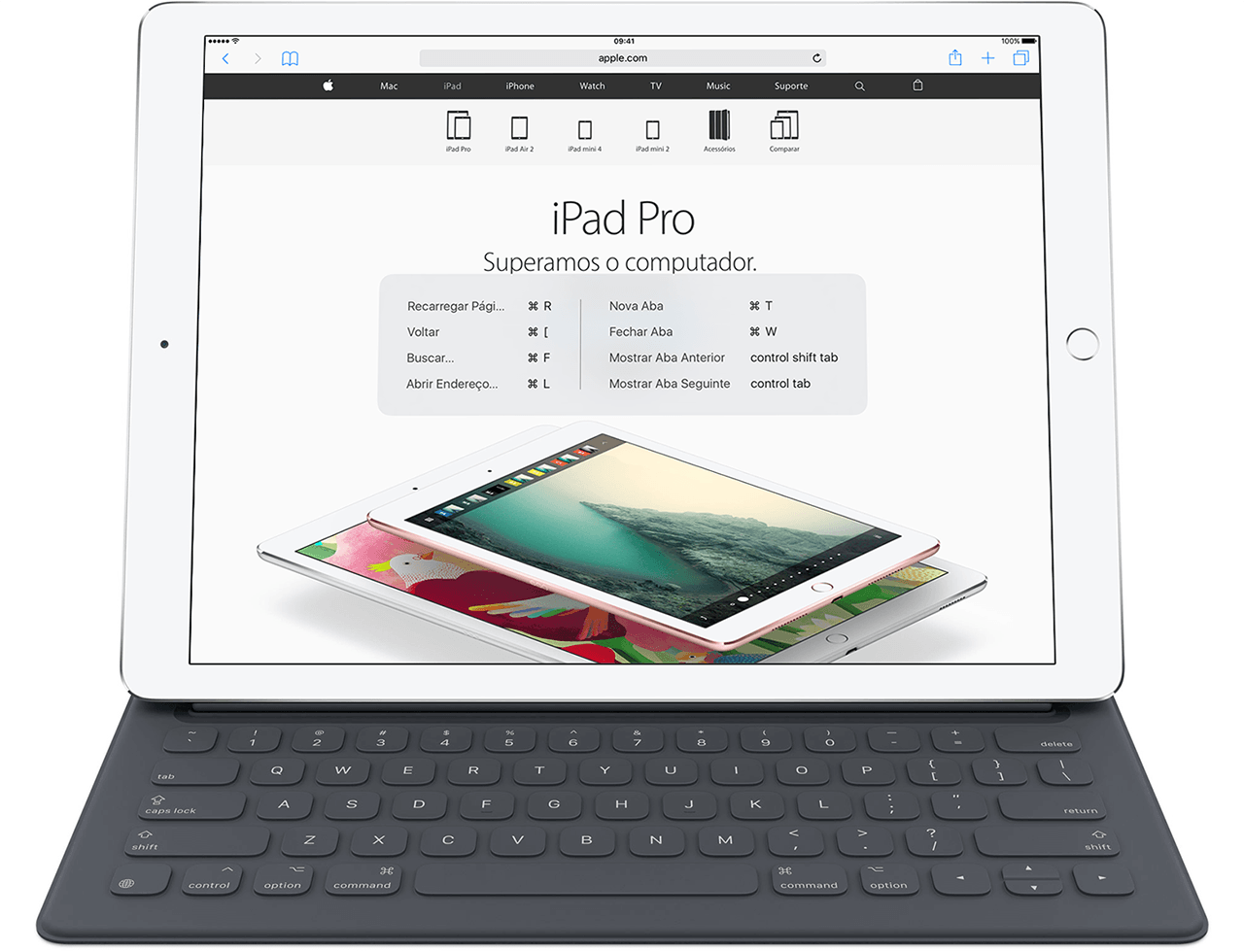
Alguém sabe onde consigo uma lista de atalhos da Smart Keyboard?
Alguém sabe onde consigo uma lista de atalhos da Smart Keyboard?
Alguém sabe onde consigo uma lista de atalhos da Smart Keyboard?
Salve Leonardo.
Eu olhei antes nesse link e também na parte de suporte mas não tem a lista completa de atalhos.
Somente alguns.
Mesmo assim obrigado pela resposta, fico no aguardo para ver se algum conhece algum lugar onde posso pegar uma lista completa.
Abs
Giuliano Onuki
Gonuki,
No artigo Usar o Smart Keyboard com o iPad Pro - Suporte da Apple estão os seguintes atalhos:
Usar atalhos de teclado
Há vários atalhos de teclado que você pode usar para realizar comandos. A maioria dos atalhos de teclado usa a tecla Command ⌘, como no Mac. Se você estiver mais familiarizado com um teclado de PC, saiba que a tecla Command ⌘ faz o mesmo que a tecla Control em um PC.
Atalhos de teclado
Para ver uma lista de atalhos que você pode usar com um app, mantenha pressionada a tecla Command ⌘ quando estiver usando o app ou na tela de Início.
Aqui estão alguns atalhos comuns de teclado:
- Botão de Início: Command + H
- Busca: Command + espaço
- Alternar apps: Command + Tab
- Selecionar tudo: Command + A
- Recortar: Command + X
- Copiar: Command + C
- Colar: Command + V
- Negrito: Command + B
- Itálico: Command + I
Achei outros em https://9to5mac.com/2015/11/20/ipad-keyboard-shortcuts-cheat-sheet/ que trazem alguns atalhos para aplicativos específicos:
App Switching + Search
- ⌘ shift H — Go to Home Screen (iOS 9.3 removed the need for shift)
- ⌘ space — Search
- ⌘ tab — Switch App
Calendar
- ⌘ N — New Event
- ⌘ F — Search
- ⌘ T — Show Today
- ⌘ R — Refresh Calendars
- ⌘ 1 — Go to Day View
- ⌘ 2 — Go to Week View
- ⌘ 3 — Go to Month View
- ⌘ 4 — Go to Year View
Camera
Volume +/- to take a photo or start/stop a video recording
Contacts
- ⌘ N — Create a New Contact
- ⌘ F — Search for a Contact
- ⌘ R — Reply
- ⌘ shift R — Reply All
- ⌘ shift F — Forward
- ⌘ shift J — Mark as Junk
- ⌘ shift L — Flag
- ⌘ shift U — Mark as Unread
- ⌘ up arrow — Go to Previous Message
- ⌘ down arrow — Go to Next Message
- delete — Delete Message
- ⌘ shift N — Get All New Mail
- ⌘ option F — Mailbox Search
- ⌘ N — New Message
Maps
- ⌘ 1 — Switch to standard
- ⌘ 2 — Switch to Transit
- ⌘ 3 — Switch to Satellite
- ⌘ F — Begin Search
Messages
- return — Send
- ⌘ N — New Message
Notes
- ⌘ B — Bold
- ⌘ I — Italics
- ⌘ U — Underline
- ⌘ option T — Title
- ⌘ option H — Heading
- ⌘ option B — Body
- ⌘ option L — Checklist
- ⌘ shift U — Mark as Checked
- ⌘ N — New Note
- ⌘ F — Find Note
Reminders
- ⌘ N — Create New Reminder
- ⌘ control I — Show Reminder Details
Safari
- ⌘ R — Reload Page
- ⌘ [ — Back
- ⌘ ] — Forward
- ⌘ F — Find…
- ⌘ L — Open Location…
- ⌘ T — New Tab
- ⌘ W — Close Tab
- control shift tab — Show Previous Tab
- control tab — Show Next Tab
- control shift \ — Show All Tabs
- ⌘ F — Find
- ⌘ shift W — Show Word Count
- ⌘ N — Create Document
- ⌘ N — Create Presentation
- ⌘ F — Find
- ⌘ shift K — Add Comment
- ⌘ option P — Play Slideshow
- ⌘ option A — Show Transitions and Builds
- ⌘ option N — Show Presenter Notes
- ⌘ N — Create Spreadsheet
- ⌘ F — Find
- ⌘ option C — Copy Style
- ⌘ shift N — Insert Sheet
You may discover that additional keyboard shortcuts you’re familiar with from the Mac also work, including ⌘ plus X/C/V for cut, copy, and paste, while some shortcuts within apps only work in certain parts of those apps. Several popular apps from the App Store also support external keyboard shortcuts. Just hold the Command ⌘ key for a few seconds in each app to find out, or try out shortcuts you know from other apps if you don’t see a list. Here are some examples from popular apps:Facebook Messenger
- ⌘ N — New Message
- return — Line Break
- ⌘ return — Send
- left arrow — Previous
- right arrow — Next
- up arrow — Earlier
- down arrow — Later
- ⌘ return — Accept
- esc — Cancel
- ⌘ N — New Event
- ⌘ S — Save
- ⌘ delete — Delete
- ⌘ F — Search
- ⌘ R — Reminders
- ⌘ I — Get Info
- ⌘ , — Preferences
- ⌘ shift F — Full Screen
- ⌘ T — Go to Today
- ⌘ K — Toggle Type
- ⌘ T — New Tab
- ⌘ shift N — New Incognito Tab
- ⌘ shift T — Reopened Closed Tab
- ⌘ L — Open Location…
- ⌘ W — Close Tab
- ⌘ D — Bookmark This Page…
- ⌘ F — Find in Page…
- ⌘ R — Reload
- ⌘ left arrow — Back
- ⌘ right arrow — Forward
- ⌘ Y — History
- ⌘ shift . — Voice Search
- ⌘ F — Search chat history
- ⌘ option 1 — Chat tab
- ⌘ option 2 — Info tab
- ⌘ option 3 — Files tab
- ⌘ option 4 — Links tab
- esc — Dismiss
- ⌘ up arrow — Select Previous Message
- ⌘ down arrow — Select Next Message
- ⌘ R — Reply
- ⌘ shift R — Reply All
- ⌘ J — Forward
- ⌘ 1 — Switch to Mail
- ⌘ 2 — Switch to Calendar
- ⌘ 3 — Switch to Files
- ⌘ 4 — Switch to People
- ⌘ 5 — Switch to Settings
- ⌘ N — Create New Message
- ⌘ shift N — Create New Event
- up arrow —Move Up
- down arrow — Move Down
- option up arrow — Jump to previous channel
- option down arrow — Jump to next channel
- option shift up arrow — Jump to previous unread channel
- option shift down arrow — Jump to next unread channel
- option ` — Toggle the channel list
- ⌘ K — Show the Quick Switcher
- ⌘ T — Show the Quick Switcher (two ways!)
- ⌘ F — Perform a search
- ⌘ W — Close window
- ⌘ 1 — Timeline
- ⌘ 2 — Mentions
- ⌘ 3 — Messages
- ⌘ 4 — Stats
- ⌘ 5 — Search
- ⌘ 6 — Faves
- ⌘ 7 — Profile
- ⌘ 8 — Lists
- ⌘ 9 — Mutes
- ⌘ N — Compose
Espero ter ajudado!
Atenciosamente,
Felipe Lapolli
Valeu brother!!!!!!
Alguém sabe onde consigo uma lista de atalhos da Smart Keyboard?